Search within Lanny's blog:


Leave me comments so I know people are actually reading my blogs! Thanks!

Sunday, August 18, 2019

Daily Battles: Mac Running Super Slow With kernel_task Using More Than 100% of Your CPU

If you use a Mac and start to notice that your Mac is running dog slow, most likely it is due to the "kernel_task" high CPU usage bug.

To confirm, open your Activity Monitor from under your Application and under Utilities folder. You should see something like this below where kernel_task should only use a small percentage of your CPU (in my case, 6.3%): 
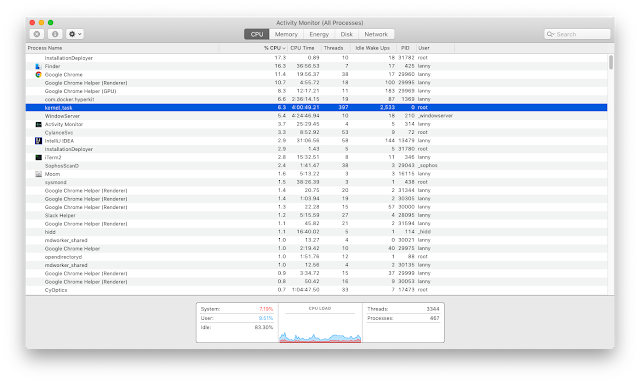
If you actually see the %CPU going for more than 100% (mine went as high as 116%, which is beyond my math understanding), that's why your computer is dog slow.

This "kernel_task" process is actually your Mac operating system. So you can't really stop this process.

First, you should try to close all your Chrome windows or whatever web browser you use (I tend to leave like dozens of them open), because one possible culprit is the Flash player, which most likely only lives in your web browsers. The good news is that when you restart your browser, all your web pages (tabs) will automatically come back, so you don't lose anything.

If the above step doesn't solve your Mac slowness problem, then you should really just restart your Mac. It is very interesting that people always joked about restarting Windows as the defacto method to solve all Windows problems. But these days, restarting your Mac is also probably the defacto method you should use for Mac problems. Sad!

Hopefully, your Mac slowness would go away and you can get back to your usual life. If not, then you should read this article for more information on troubleshooting! Good luck!

How to Fix Your Mac’s “kernel_task” High CPU Usage Bug


Picture of the Day:

A nice evening view picture from my deck.


BTW: The easiest way to remember my blog address is http://lanny.lannyland.com

Thursday, August 15, 2019

Daily Battles: Not Able to See Shared Google Calendars on iPhone

If you received an email saying that someone has shared a Google Calendar with you, and then you accept the invitation. Most likely you still can't see the shared Google Calendar events on your calendar.

Do not panic! This is Google's choice by design (a bad one).

Here's what you have to do to get calendar events to show up:
  • Open a browser on your iPhone, whether it is Safari or Chrome or something else.
  • Go to calendar.google.com/calendar/syncselect.
  • Sign in to your Google account if you are asked to.
  • Check the checkbox(es) of the shared calendars you want to see on your iPhone.


Same goes for iPad and Mac. Just follow the same steps and you'll be fine.

See how easy it is? Now move on to your next battle with technology! Good luck!


Video of the Day:


My daughter's high school soccer team was featured by the local TV station on their effort to serve the community! Go girls!


BTW: The easiest way to remember my blog address is http://lanny.lannyland.com

Wednesday, August 14, 2019

Daily Battles: How to Fix A Chromebook That Won't Turn On

If you have a Chromebook and you cannot turn it on even though you are pretty sure you have the battery fully charged, you've come to the right place.

Before you decide to open it up and replace the battery, or hard reset the Chromebook back to factory default, you should always try this method I am describing first. I might fix your problem without losing any data and save yourself a ton of work.


Step one: make sure the battery has been charging for a good while.

Step two: hold the refresh button and the power button together for 10 seconds and then let go.

Image from TechyThings.com

Now hit the power button again and your Chromebook should start normally.

Here's a video showing you step by step (come on, there are really only two steps):


Picture of the Day:

Silver lake in Brighten Ski Resort, Salt Lake City, Utah


BTW: The easiest way to remember my blog address is http://lanny.lannyland.com

Tuesday, August 13, 2019

Daily Battles: HoMedics Shiatsu Neck & Shoulder Massager Stopped Working

Since I sit in front of a computer all day (with pretty bad postures), I have very stiff neck and shoulders. Boss got me a HoMedics Neck and Shoulder Massager (model number NMS-620H). Having just left it lying by my desk for quite a while, I decided to give myself a massage when I felt a very tight back. However, when I turned it on, nothing moved. Here's the thing, when nothing moves, no one gets a massage.


The massager was only about 2 years old and I honestly haven't used it much. I tried pushing all the buttons, hoping that I simply forgot how to operate this thing. When I push the heat button, the lights do light up and I could feel the massager getting warmer. It simply just doesn't move the kneaders. I power cycled it a few times, but that didn't change anything.

Tried searching online and see if other people had similar problems. The answer was yes. Many people had the same problems, but the only way to fix it was to have the manufacturer replace parts or replace the entire unit.

Didn't want to go through all those troubles, so I decided to try fixing it myself. If you have similar problems, here's what you can try.

First of all, make sure the massager has power (and don't make a mistake like this). In my case, since the lights come on and I can feel the massager warming up, I know the massager is getting enough power.

Next, unplug the massager from power and have it just sit overnight. Yep, it's that simple. Once you have patiently waited (or you simply forgot about it for many nights), plug it back in, and try turning it on again. You'd be very pleasantly surprised that the massager has returned to life.

We know HoMedic makes all kinds of massagers such as this one, this one, and this one. This method should also work for those types of massager. At least you should give this method a try before you start calling the warranty service.


Hope this simple method can help you out and save you a bunch of extra work. Moving on to the next daily battle!


No matter how delicious the just cooked noodle is, do not be tempted to eat it right away. Patience is the virtual, otherwise, you will burn your tongue and not be able to taste it.


BTW: The easiest way to remember my blog address is http://lanny.lannyland.com

Monday, August 12, 2019

Daily Battles: How to Get Rid Of Recommended Videos at the End of a YouTube Video

Don't you find it very annoying that towards the end of a YouTube video you watch, a bunch of recommended video thumbnails cover up most of the player screen and obstruct the ending part of the clip?

Well, here's how you can fix that:

Go to YouTube web page and click on you avatar icon to open the menu. Click Settings with the gear icon. Next click Playback and performance from the menu on the left, and you'll see something like the image below. Uncheck Show annotations and in-video notifications. Make sure to click the SAVE button. That's it!


Another battle fought and another battle one. Moving on to the next battle!


This fix is also super valuable if you find yourself keep clicking those thumbnails to watch clips after clips late into the night... 


BTW: The easiest way to remember my blog address is http://lanny.lannyland.com